
FBX to GLB Converter
Most format-conversion guides only cover GLB to FBX for getting a model into Unity, but the opposite direction, taking an FBX model built for a DCC-to-engine pipeline and turning it into a web- and AR-ready GLB, has its own distinct pitfalls around axis conventions, units and materials that a straight reversal of the same steps will not automatically fix.
Matching downloadable assets
Start with these seed models, then generate variants in the same low-poly direction.
Members unlock protected STL access
Use the free OBJ to test the shape. Subscribe for protected STL downloads now; GLB, FBX, USDZ and Unity are shown as production export targets, not direct library downloads yet.

Nature Starter Pack
Low-Poly Pine Tree
A lightweight forest prop with a trunk, two faceted foliage layers and a clean base pivot for scattering.
View details- Triangles
- 24
- Texture
- Flat color
- License
- Commercial use
- Formats
- OBJ
Protected STL download
Production export targets
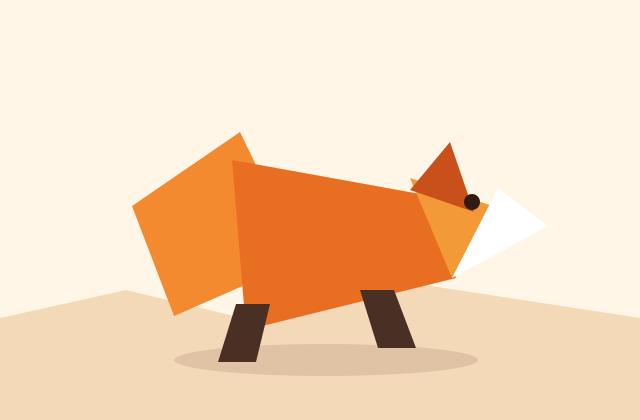
Cozy Animal Pack
Low-Poly Fox
A stylized animal prop for cozy games, woodland scenes and AR previews.
View details- Triangles
- 24
- Texture
- Flat color
- License
- Commercial use
- Formats
- OBJ
Protected STL download
Production export targets
Highlights
- FBX has no enforced axis/unit convention (Y-up or Z-up, often centimeters); glTF/GLB strictly requires +Y up, +Z forward, meters
- Wrong axis/unit assumptions produce a model rotated 90 degrees and scaled ~100x, the most common conversion bug
- FBX's Phong/Blinn/specular material model must be remapped to glTF's mandatory PBR metallic-roughness model
- Blender: File > Import > FBX (check axis/scale), verify materials, then File > Export > glTF 2.0 (.glb)
- Enable Apply transforms on export so residual scale/rotation bakes into the mesh rather than the node
- glTF only supports linear-blend skinning, not FBX's occasional dual-quaternion skinning; scrub twisty rigs after conversion
- FBX often references loose external textures; pack/embed them before export or the GLB ships with missing images
- AI-generated models carry the same commercial license regardless of conversion direction, no attribution required
Axis and unit mismatch is the single most common failure in this direction. FBX has no single enforced convention: different exporters ship it as Y-up or Z-up, and many DCC pipelines (3ds Max, older Maya setups) default to centimeters as the working unit. glTF and GLB, by contrast, strictly enforce +Y up, +Z forward, a right-handed coordinate system, and meters as the only valid unit. An FBX authored in centimeters with a Z-up convention will import into a naive GLB converter as a model rotated 90 degrees and scaled roughly 100 times too large, which is exactly the "why is my converted model lying on its side and giant" bug most people hit on their first conversion. Blender's FBX importer applies a correction on import, a "-Z Forward, Y Up" option plus a scale-by-0.01 option for centimeter files, so always check the imported scale and rotation before proceeding.
FBX's classic material model, Phong, Blinn or Lambert shading defined by a specular color and shininess exponent, predates the physically-based rendering standard, while glTF and GLB mandate PBR metallic-roughness materials as the only supported model. Converting FBX to GLB is therefore not a straight copy: Blender's importer approximates the old specular-based values into a metallic-roughness setup on import, which usually looks close for matte, flat-color low poly materials but can shift noticeably for glossy or metallic FBX materials authored with a specular workflow, so always eyeball the converted material in Blender's viewport before exporting rather than trusting an automatic conversion blindly.
Blender is again the most reliable free bridge, and the steps run in the opposite order from a GLB-to-FBX conversion: File then Import then FBX, checking the reported scale and axis correction in the import options and adjusting the forward axis and unit scale if the model imports rotated or oversized, then verifying materials converted sensibly, then File then Export then glTF 2.0 (.glb), choosing the binary GLB format so textures embed into one self-contained file rather than needing separate loose image references. Enable Apply transforms in the export panel so any residual scale or rotation correction bakes into the exported mesh instead of surviving as an awkward node transform that a web viewer might not apply correctly.
FBX's skeleton and animation-clip system maps reasonably well onto glTF's simpler node-and-skin animation model, so a rigged, animated FBX character generally converts cleanly. The one real exception is skinning method: glTF only supports linear-blend skinning, not FBX's occasionally-used dual-quaternion skinning, so a heavily-twisted rig, like a snake body or a character's forearm twist-bone setup relying on dual-quaternion blending, can show subtle pinching after conversion that was not present in the source FBX. Scrub the converted animation in a GLB viewer, Blender's own viewport or the online glTF Sample Viewer, before shipping, exactly as you would check a GLB-to-FBX conversion in reverse.
FBX commonly references textures as loose external image files sitting next to the FBX in a folder rather than embedding them, which is fine inside a DCC pipeline but breaks the moment the FBX moves without its folder. When converting to GLB, make sure Blender actually finds and packs every referenced texture, File then External Data then Pack Resources, or use the exporter's embed option, so the resulting GLB is genuinely self-contained. A GLB that ships with missing textures because the source FBX's texture paths never resolved is one of the most common silent failures in this conversion direction.
Whichever direction you convert, the model itself carries the same license: AI-generated assets on this site are yours to use commercially with no attribution required, so an FBX model built for a Unity project can be converted to GLB for a web configurator or AR viewer on the same product line without any additional licensing step, only the technical checks above.
Round out the conversion pipeline
Frequently asked questions
Why does my converted GLB look rotated or huge?
This is almost always an axis/unit mismatch: FBX has no enforced up-axis or unit convention, while glTF/GLB strictly requires +Y up, +Z forward and meters. Check Blender's FBX import options for the axis and scale correction before exporting.
Do FBX materials convert accurately to glTF?
Approximately, not exactly. FBX's older Phong/Blinn specular-based materials get remapped to glTF's mandatory PBR metallic-roughness model on import, which looks close for flat matte low poly colors but can shift for glossy or metallic materials, so check the converted look before exporting.
What is the easiest free way to convert FBX to GLB?
Open Blender, use File > Import > FBX, verify the axis and scale correction, confirm materials look right, then File > Export > glTF 2.0 and choose the binary .glb format with Apply transforms enabled.
Will my FBX animation still work after converting to GLB?
Usually yes, since FBX's skeleton and clips map onto glTF's node-and-skin animation model. The one exception is dual-quaternion skinning, which glTF does not support; scrub heavily-twisted rigs in a GLB viewer after conversion to check for pinching.
Why is my converted GLB missing textures?
FBX often references textures as loose external files rather than embedding them. Pack or embed every texture in Blender (File > External Data > Pack Resources) before exporting so the GLB is self-contained.
Related
Browse allNeed a custom low-poly model?
Generate one from a text prompt or reference image, then export GLB, FBX, OBJ or STL.
Open the generator