
GLB to FBX Converter
Most low poly models start life as GLB because it is the web and AI-generation default, but Unity and Unreal both want FBX for the cleanest, most predictable import, so converting between the two is one of the most common steps in a real pipeline.
Matching downloadable assets
Start with these seed models, then generate variants in the same low-poly direction.
Members unlock protected STL access
Use the free OBJ to test the shape. Subscribe for protected STL downloads now; GLB, FBX, USDZ and Unity are shown as production export targets, not direct library downloads yet.

Nature Starter Pack
Low-Poly Pine Tree
A lightweight forest prop with a trunk, two faceted foliage layers and a clean base pivot for scattering.
View details- Triangles
- 24
- Texture
- Flat color
- License
- Commercial use
- Formats
- OBJ
Protected STL download
Production export targets
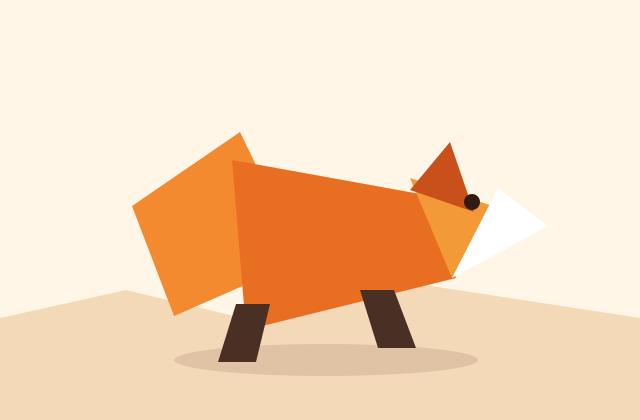
Cozy Animal Pack
Low-Poly Fox
A stylized animal prop for cozy games, woodland scenes and AR previews.
View details- Triangles
- 24
- Texture
- Flat color
- License
- Commercial use
- Formats
- OBJ
Protected STL download
Production export targets
Highlights
- GLB is self-contained (geometry + materials + textures); FBX carries a richer hierarchy, pivots and named material slots
- Blender is the most reliable free path: File > Import > glTF 2.0, then File > Export > FBX
- Always verify object origin, recalculated normals and material names before exporting
- Enable Apply Transform on export so scale/rotation bake in instead of surviving as a stray 90-degree offset
- Static flat-shaded meshes convert essentially perfectly; rigged animation needs a manual scrub-check after import
- Unpack embedded GLB textures to files before FBX export, or Unity/Unreal will see a broken texture link
- Advanced GLB material channels (clearcoat, transmission) have no FBX equivalent and will be dropped or approximated
- assimp or FBX2glTF-style CLI tools suit batch conversion of many assets at once
GLB and FBX solve slightly different problems, which is exactly why converting between them is not always a lossless round trip. GLB is a self-contained binary built for the web: geometry, PBR materials and textures all live in one file, and it supports skeletal animation through a simpler node-and-skin system. FBX is older, built for DCC-to-engine pipelines, and carries a richer scene graph: named object hierarchies, pivots separate from the mesh origin, multiple named material slots, and full skeleton plus animation-clip support that Unity and Unreal both read natively. Converting GLB to FBX generally preserves geometry, UVs and basic materials cleanly, but you should always verify pivots and any skinning after the conversion rather than assuming a 1:1 result.
The most reliable free path is Blender, because it has first-class importers and exporters for both formats maintained as core functionality. Import the GLB through File then Import then glTF 2.0, which brings in the mesh, node hierarchy and any PBR materials as Principled BSDF shaders. Before exporting, check three things: object origins are where you want them (add an Empty at the base or center if the imported pivot is wrong), normals are correct (Shift N to recalculate if shading looks inverted), and material names are sensible for the Materials tab you will use later in Unity. Then use File then Export then FBX, choosing Selected Objects if you only want part of the scene, and enabling Apply Transform so scale and rotation bake in cleanly rather than surviving as a leftover 90-degree rotation inside the engine.
What survives the conversion depends entirely on what the GLB actually contains. A static mesh with baked flat-color or gradient materials converts essentially perfectly: geometry, UVs and vertex colors carry through, and Unity or Unreal will read the FBX exactly as you saw it in Blender. A rigged, animated GLB is more delicate: Blender imports the skeleton and skin weights correctly in almost all cases, but you should scrub the animation timeline after import to confirm bones deform as expected before you export, since a bad import here produces a pinched or twisted rig that is much harder to debug once it is inside Unity. If the GLB used advanced material features like clearcoat or transmission that FBX has no equivalent for, expect those channels to be dropped or approximated, so plan to rebuild anything highly stylized as a simple base-color-plus-roughness setup for the FBX version.
Texture handling is the detail most people get wrong. GLB embeds its textures inside the binary file, so after importing into Blender the images exist as packed data, not as loose files on disk. Before exporting FBX, unpack the textures (File then External Data then Unpack All Into Files) so Unity or Unreal has actual image files to reference rather than a broken link. Keep every texture in one shared atlas exactly as the source GLB intended, 512 to 1,024px for props and 1,024 to 2,048px for a hero asset, since splitting materials apart during conversion is the single most common way an efficient low poly kit turns into a draw-call-heavy mess after import.
For a quick one-off conversion without opening Blender, command-line tools like Facebook's FBX2glTF (reversed) or the assimp library can convert GLB to FBX in a script or CI pipeline, which is worth setting up if you are converting dozens of generated assets at once for an asset-pack release. For anything with a rig, animation, or unusual materials, though, the Blender round trip is worth the extra minute because you get a visual check before the file ever reaches your engine. Whichever path you use, the source GLB and the converted FBX are both yours: AI-generated models on this site are fully owned by you and cleared for commercial use with no attribution required, so converting formats never introduces a licensing question, only a technical one.
Related format and pipeline tools
Frequently asked questions
Will I lose quality converting GLB to FBX?
For a static mesh with flat-color or baked-gradient materials, no meaningful quality is lost. For rigged animation or advanced PBR channels like clearcoat, some detail can be dropped or approximated, so always check the result before shipping.
What is the easiest free way to convert GLB to FBX?
Open Blender, use File > Import > glTF 2.0 to bring in the GLB, verify origin and normals, unpack any embedded textures, then use File > Export > FBX with Apply Transform enabled.
Why does my converted FBX look rotated or scaled wrong in Unity?
This almost always means Apply Transform was not enabled during the Blender FBX export, so a 90-degree axis difference between glTF and FBX conventions survived into the file. Re-export with Apply Transform checked.
Do animations survive a GLB to FBX conversion?
Usually yes if the GLB was properly rigged, but always scrub the animation timeline in Blender after import to confirm the skeleton deforms correctly before exporting to FBX.
Can I batch-convert many GLB files to FBX at once?
Yes. Command-line tools like assimp can script bulk conversion, which is worth it when converting a full asset pack, but anything with rigging or unusual materials still benefits from a manual Blender check first.
Related
Browse allNeed a custom low-poly model?
Generate one from a text prompt or reference image, then export GLB, FBX, OBJ or STL.
Open the generator