
OBJ to STL Converter
OBJ and STL look like they should be interchangeable since both are old, simple, universally-supported formats, but they solve opposite problems: OBJ describes a shaded, textured, named scene meant to be rendered, while STL describes nothing but a raw watertight triangle shell meant to be sliced and printed, so converting between them is a genuine format downgrade, not a repackaging.
Matching downloadable assets
Start with these seed models, then generate variants in the same low-poly direction.
Members unlock protected STL access
Use the free OBJ to test the shape. Subscribe for protected STL downloads now; GLB, FBX, USDZ and Unity are shown as production export targets, not direct library downloads yet.

Nature Starter Pack
Low-Poly Pine Tree
A lightweight forest prop with a trunk, two faceted foliage layers and a clean base pivot for scattering.
View details- Triangles
- 24
- Texture
- Flat color
- License
- Commercial use
- Formats
- OBJ
Protected STL download
Production export targets
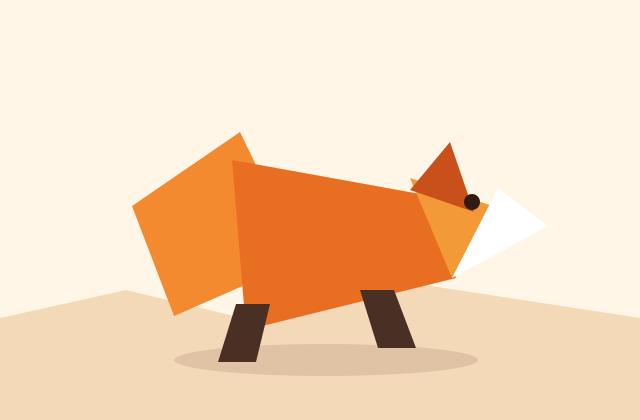
Cozy Animal Pack
Low-Poly Fox
A stylized animal prop for cozy games, woodland scenes and AR previews.
View details- Triangles
- 24
- Texture
- Flat color
- License
- Commercial use
- Formats
- OBJ
Protected STL download
Production export targets
Highlights
- OBJ carries UVs, materials, names and multiple objects; STL is pure triangle geometry with none of that
- Converting OBJ to STL is one-way: textures, materials and object names are permanently discarded
- OBJ never enforces manifold geometry; check for non-manifold edges and open boundaries before or after converting
- STL only supports triangles, not quads/n-gons, so quad-based OBJ topology gets auto-triangulated on export
- Watch for thin sliver triangles introduced by triangulation on curved low poly surfaces
- Blender: File > Import > OBJ, run 3D Print Toolbox "Check All", repair, then File > Export > STL
- OBJ has no unit declaration; a "1 unit = 1 meter" game-scale OBJ can import 1000x too small into a slicer
- AI-generated models are yours to print and sell commercially, no attribution required
An OBJ file, paired with its companion .mtl material file, stores UV coordinates, material names and assignments, sometimes vertex normals and colors, and can bundle multiple named objects or groups inside one file. STL supports none of that: it is purely a list of triangles, each with three vertex positions and a face normal, with no UV layout, no material reference, no object names and no companion file. Converting OBJ to STL is therefore a one-way trip: every texture, material slot and named sub-object gets discarded, and if the OBJ contained several separate objects they typically merge into a single unnamed solid on export unless your converter explicitly keeps them split.
Watertightness is the real gatekeeper, and OBJ files frequently fail it silently. OBJ was designed for rendering, where a small gap, an open edge, or two overlapping surfaces are invisible to a renderer but fatal to a slicer. Because OBJ never enforced manifold geometry, a file downloaded from a general asset marketplace or exported straight from a modeling tool without print-checking often has non-manifold edges, internal duplicate faces, or open boundaries that were never a problem until you try to print it. Always run a manifold/watertight check (Blender's 3D Print Toolbox add-on, or Meshmixer's Inspector, which auto-detects and can auto-repair small gaps) on the OBJ before or immediately after converting to STL, since STL itself performs no validation and will happily export a broken shell.
Triangulation matters here in a way it usually does not for a game export: STL is strictly a triangle format with no support for quads or n-gons at all, so any OBJ built with quad-based topology, common for cleaner subdivision-friendly modeling, must be triangulated during conversion. Most converters triangulate automatically, but the algorithm's diagonal choice can occasionally introduce a thin sliver triangle at a bad angle on a curved or rounded low poly surface, which is worth a quick visual check in your slicer's preview before committing to a long print.
Blender remains the most reliable free bridge for this conversion: File then Import then Wavefront (.obj), which reads geometry and, if the companion .mtl file sits alongside it, brings in the material assignments purely for your own reference, since they will not survive the STL export. Select the object, enable the Blender 3D Print Toolbox add-on to run "Check All" and repair any reported non-manifold edges, then File then Export then STL. If your print needs multiple color regions marked out, note them now while materials still exist in Blender, since STL export is your last chance to reference that information before it is gone.
Scale and units silently matter here too: OBJ carries no explicit unit declaration, so a slicer interprets the raw numbers as millimeters by default, meaning an OBJ modeled at "1 unit equals 1 meter" in a game engine will import into a slicer roughly 1,000 times too small unless you apply a scale correction during conversion. Always check the imported model's real-world dimensions in your slicer before starting a print, since a silently wrong scale is one of the most common and hardest-to-notice failures in this specific conversion direction.
Printing and even selling a physical object made from a model you generated here is fine. AI-generated models are yours to use commercially with no attribution required, so an OBJ you generate, clean up and convert to STL can become a sold figurine, a personal desk print, or a batch of gifts without any licensing step beyond the technical repair work above.
Finish the print-ready pipeline
Frequently asked questions
What is lost when converting OBJ to STL?
Everything except raw geometry: UV coordinates, material assignments, colors and object/group names are all discarded. STL stores only a list of triangle positions and normals, so plan color as a post-print painting step.
Why does my converted STL fail to slice?
OBJ files frequently contain non-manifold edges or open boundaries that a renderer never flagged as a problem. Run a manifold check (Blender's 3D Print Toolbox or Meshmixer's Inspector) on the OBJ before or after converting, since STL export performs no validation of its own.
Does OBJ's quad topology survive in STL?
No. STL only supports triangles, so any quad or n-gon faces in the OBJ get automatically triangulated during export. Check the slicer preview for any thin sliver triangles the triangulation may introduce on curved surfaces.
Why is my printed model the wrong size?
OBJ has no built-in unit declaration, so a slicer assumes millimeters by default. A model authored at game-engine scale, where 1 unit equals 1 meter, will import about 1,000 times too small unless you apply a scale correction during conversion.
Can I sell figurines printed from a converted OBJ?
Yes. AI-generated models are yours to use commercially with no attribution required, so a model you generate, repair for manifold geometry and convert to STL can be printed and sold once it passes your printer's checks.
Related
Browse allNeed a custom low-poly model?
Generate one from a text prompt or reference image, then export GLB, FBX, OBJ or STL.
Open the generator